M-Star Queue
M-Star comes with a queue processing interface that allows the user to build a queue of simulations and run them on GPUs. Basic resource management configuration is supported, such as picking GPUs to use and number of GPUs per simulation. Loading in a parameter sweep is supported.
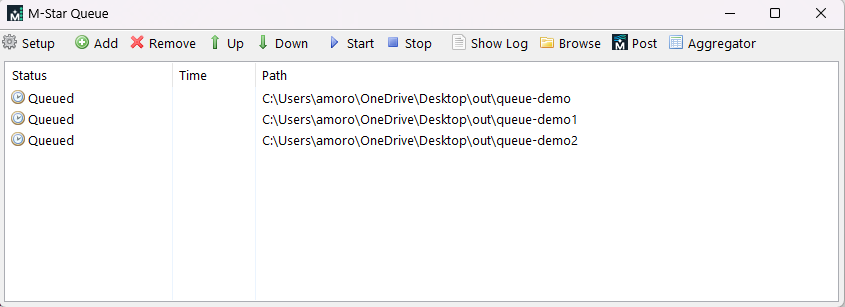
- Setup
This opens the Solver Queue Preferences where you can specify the number of GPUs you’d like to run. The first time you run the queue, you will need to select the number of GPUs per simulation.
- Add
This opens a window to select the case directories to add.
- Remove
This will remove the selected job in the solver queue.
- Up
This will move the selected job up in the solver queue.
- Down
This will move the selected job down in the solver queue.
- Start
This will begin the queue processing.
- Stop
This will stop the queue processing.
- Show Log
This shows the output solver window at a given point in time.
- Browse
This launches the output files for the simulation that is currently processing.
- Post
This launches the current processing simulation in M-Star Post.
- Aggregator
This brings up all the data from the runs in the queue and shows a summary.
Configuring the Queue
Click Setup.
Select the GPUs you want to use for queue processing.
Specify the number of GPUs per job.
Click OK.
Adding Jobs
Click Add.
Select an individual case directory or a directory that contains sub-directories with the case data.
Click OK.
The directory is scanned for cases and added to the queue.
Note
Job paths must be unique. If you attempt to add the same case more than once to the queue, the case addition will be skipped.
Removing Jobs
Select the cases in the list.
Click Remove.
Running the Queue
Simply click Start to begin queue processing. The queue will process jobs from the top of the list to the bottom. The Queue GUI implements a simulation exclusive use of each GPU, so that only one job uses a given GPU at a time. When a job finishes, the next job will start up on the available resources.
If a job is queued for processing and has existing output data, you will be prompted to delete the output directories prior to starting the queue.
Monitoring Jobs
The Queue GUI will indicate a basic status about the job—whether it is queued, running, finished successfully, or failed.
Click on Show Log to see the job simulation log file. Note that this is not a live updating reader; it only displays the log file at a point in time. Click Refresh to update the log view.
Stopping the Queue
Click Stop to terminate queue processing. The queue manager attempts to stop the job gracefully before force-terminating the running jobs. Jobs that are not complete are marked as “Queued” again. Note that resuming a queue is currently not supported at this time.
Post Processing
Select the jobs you want to post processing and click Post. This opens M-Star Post with the selected case output data.