 Main Lattice
Introduction
The main lattice represents the mathematical extent of the model. Only those portions of the imported geometry that are inside the main lattice will be included in the simulation. The extent of the main lattice combined with the simulation resolution inform the overall simulation size and memory requirements.
The context-specific main lattice toolbar can be used to edit the position and extent of the lattice, set the number of flood fill points, and link to relevant documentation.
Property Grid
Domain
The domain is always cuboid and is initially presented as a green 1 m3 box centered about the global origin. The position and extent of the main lattice will automatically adjust during model setup to define a cuboid bounding box containing all user-imported solid geometry. Once import is complete, the position and extent of the lattice can be tailored by the user to isolate specific sections of the imported geometry.
- Domain Mode
The shape of the three-dimensional bounding box that contains the main lattice.
- Full
The position and extent of the main lattice domain automatically adjust during model setup to define a cubic, axis-aligned minimum bounding box containing all user-imported solid geometry. The user can see the current locations of the lower and upper points defining the box, but cannot adjust these points.
- Custom
The user specifies the locations of the lower and upper points of the three-dimensional bounding box defining the lattice domain. The user can see and adjust the locations of the lower and upper points of the box.
- Lower Point
m | The x-, y-, and z-coordinates of the lower points defining the box.
- Upper Point
m | The x-, y-, and z-coordinates of the upper points defining the box.
- Partial Fill
The position and extent of the main lattice domain automatically adjust during model setup to define a cubic, axis-aligned minimum bounding box containing all user-imported solid geometry. The user can see the locations of the lower and upper points defining the box, but adjust only the height of the box aligned with the Up direction.
- Partial Fill
m | The total height of the simulation box.
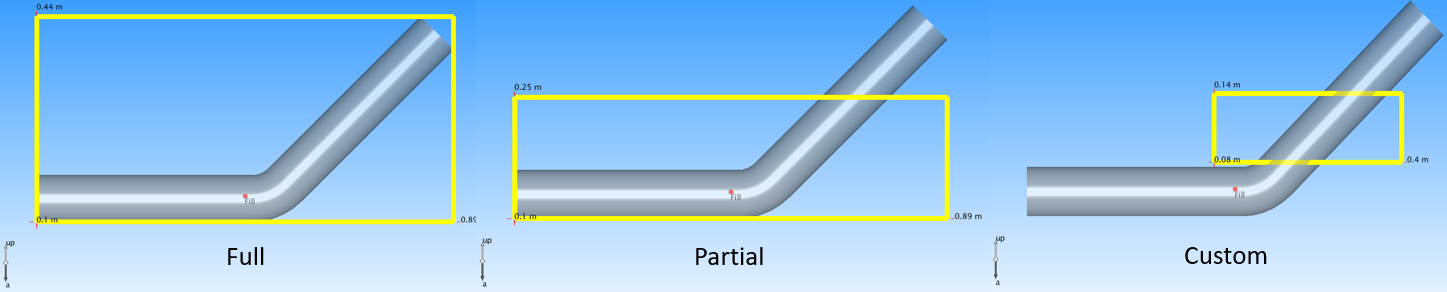
To illustrate the three Domain Mode options, consider the image below.
In the left-hand pane, the domain is set to Full. As such, the lattice represents a cubic bounding box containing all imported geometry.
In the center pane, the domain is set to Partial. Under this setting, the height of the box in the Up Direction can be adjusted, while the dimensions of the box perpendicular to the Up Direction are set to contain all imported geometry.
In the right-hand pane, the domain is set to Custom. In this configuration, the bounding box can be given an arbitrary location and extent.
Up Direction
For convenience with multi-fluid model building and setup, users can define a model “Up Direction.” The Up Direction typically points in the opposite direction of gravity, and provides ease-of-use functionality when defining partially filled tanks or initially stratified fluids. This reference dihedron can be seen on the viewing panel. By default, the Up Direction points in the +y direction, and gravity points in the -y direction. This default can be changed in the Edit > Preferences menu.
 Fill Point
For a lattice domain that contains vessels, pipes, vials, tanks, etc., the solver needs to differentiate the interior zone of the lattice domain from the exterior zone. The interior zone is a continuous region within the lattice domain that, at some point during the simulation, may contain fluids, particles, species, or moving solid surfaces. These interior regions are typically the space inside a vessel, pipe, or bounding geometry. The exterior zone, which typically occupies the region between the outside tank walls and the lattice domain, will never contain fluid or particles.
To discriminate interior from exterior zones, the solver performs a 3D flood fill beginning at a user-defined fill point and then expands to the vessel walls and/or the simulation bounding box. By default, the fill point is set to the center of the main lattice domain. Users can move the flood fill point to other locations inside the domain or add multiple flood fill points, using the Add Fill Point form on the context-specific toolbar.
Dynamics
Linear and centripetal accelerations can also be imposed on the lattice. These accelerations can be constant or time-varying. By default, a constant acceleration of 9.81 m2/s is imposed on -y direction of the main lattice. Additional accelerations can be superimposed onto the system.
- Gravity
m/s 2 | The x-, y-, and z-components of the constant gravity vector.
- External Accelerations
Applies an acceleration to the complete domain to mimic movement that is applied to the domain. It is easier to apply this acceleration than to model the motion directly. You can model a user-defined function to define your own custom motion. It is used for cell culture beds, shaken bottles, and microtiter plates. These points will be discussed in the forthcoming External Accelerations How-to Guide.
- None
Object is at rest. No external acceleration.
- Linear Shake
One-dimensional rigid body oscillation.
- Orbital Shake
Two-dimensional rigid body orbital motion.
- Rocking
One-dimensional rigid body rocking about a user-defined pivot point.
- Ball Joint
Rigid body rotation on a ball joint.
- Custom Rotation
Custom-defined rigid body rotation.
- Custom Translation
Custom-defined rigid body translation.
System Boundary Conditions
The six sidewalls of the main lattice domain are, by default, assigned no-slip wall boundary conditions. In this condition, the lattice domain provides six rigid walls through which fluid, species, and/or particles cannot cross. The individual faces of the bounding box can be alternatively assigned velocity, pressure, and/or free-slip boundary conditions. For systems with openings, such as a pipes entering a tank, users can impose local boundary conditions along specific regions of the lattice domain. Multiple boundary conditions can be imposed on a single side of the lattice domain.
Local boundary conditions can be imposed at user-defined regions of the lattice domain. These local boundary conditions can be different from the lattice domain boundary condition. By default, the top surface (defined relative to the simulation Up Direction) is free slip, while the remaining five sides are no slip.
- Min XBC
The minimum X plane boundary conditions.
- No Slip
Zero fluid velocity along the bounding box wall.
- Free Slip
Zero fluid shear stress in the direction parallel to the wall; zero fluid velocity in the direction normal to the wall.
- Min YBC
The minimum Y plane boundary conditions.
- No Slip
Zero fluid velocity along the bounding box wall.
- Free Slip
Zero fluid shear stress in the direction parallel to the wall; zero fluid velocity in the direction normal to the wall.
- Min ZBC
The minimum Z plane boundary conditions.
- No Slip
Zero fluid velocity along the bounding box wall.
- Free Slip
Zero fluid shear stress in the direction parallel to the wall; zero fluid velocity in the direction normal to the wall.
- Max XBC
The maximum X plane boundary conditions.
- No Slip
Zero fluid velocity along the bounding box wall.
- Free Slip
Zero fluid shear stress in the direction parallel to the wall; zero fluid velocity in the direction normal to the wall.
- Max YBC
The maximum Y plane boundary conditions.
- No Slip
Zero fluid velocity along the bounding box wall.
- Free Slip
Zero fluid shear stress in the direction parallel to the wall; zero fluid velocity in the direction normal to the wall.
- Max ZBC
The maximum Z plane boundary conditions.
- No Slip
Zero fluid velocity along the bounding box wall.
- Free Slip
Zero fluid shear stress in the direction parallel to the wall; zero fluid velocity in the direction normal to the wall.
Note
For simulations involving closed tanks where the interior never touches the lattice domain side walls, the lattice domain boundary condition is of no consequence.
Display Attributes
- Visible
This controls whether the object is displayed in the 3D viewing panel.
- Hidden
The object is not displayed in the 3D view.
- Shown
The object is displayed in the 3D view.
- Mode
This controls how the object is rendered.
- Wire
This renders the object as a wireframe.
- Color
This sets the color of the wireframe.
- Width
This adjusts the line width used to render the wireframe.
- Shaded
This renders the object as a shaded surface.
- Material
This sets the surface material. Available options are Aluminum, Steel, Chrome, Plastic, and Glass.
- Color
This sets the surface color.
- Opacity
When glass is selected, this sets surface opacity.
Main Lattice Output Data
Domain statistics output is produced only when external dynamics are applied to the lattice domain. It records the time evolution of the domain position, velocity, and acceleration.
Main Lattice Toolbar
Context-Specific Toolbar Forms |
Description |
|---|---|
|
The Resize form adjusts the size of the parametric cuboid, cylinder, or sphere. |
|
The Add Fill Point selects which space will initially be 3D-filled with a liquid. |
|
The Add Refinement Zone tool adds areas where the local lattice resolution is finer than the baseline. |
|
The Add Inclusion Zone tool adds regions of the domain where the solver will explicitly place lattice points. |
|
The Reset Box command snaps the bounding box back to imported static geometry. |
|
The Volume Calculator calculates the fluid volume. |
|
The Help command launches the M-Star reference documentation in your web browser. |
 Resize
 Add Refinement Zone
 Add Inclusion Zone
 Reset box
 Volume Calculator
 Help
HelpFor a full description of each option, see Context-Specific Toolbar selections.